 remontandroid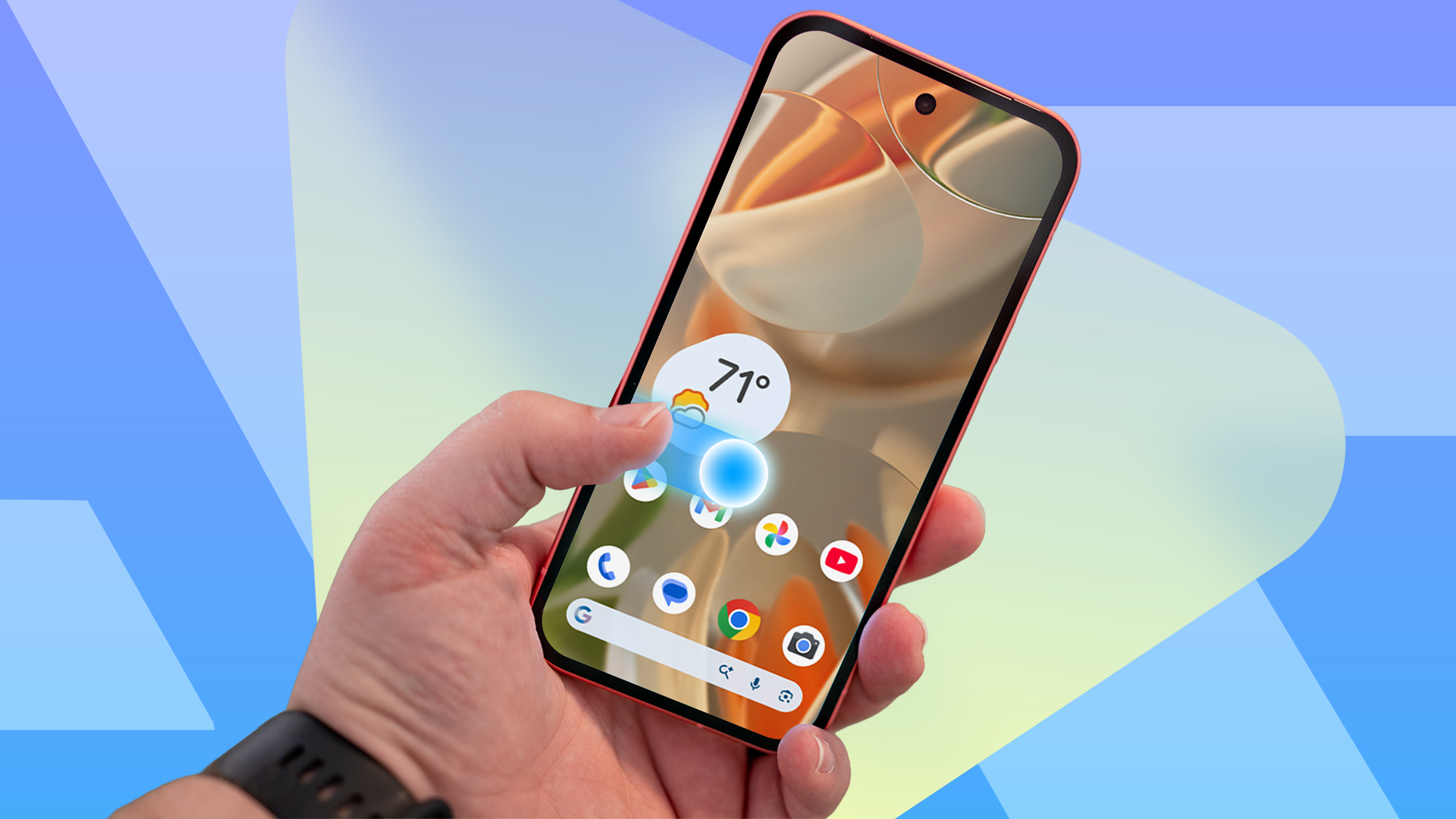
Why navigation is key
When switching from iPhone to Android, the first and most important step is to change the navigation settings. Even if the hardware is top-notch and the OS polished, incorrect navigation can ruin the first impression. Muscle memory from iOS forces the thumb to swipe from the left edge or reach for the top-left corner – if Android doesn't respond the same way, the user becomes frustrated.
Gestures versus buttons
Most modern Android phones support gestures, but many still have a three-button bar. On second-hand devices, older configurations, or restored backups, buttons often reappear. I recommend enabling gestures right after first boot – home is swipe up, multitasking is swipe and hold.
One UI and split panel
Samsung One UI since version 7 splits the notification shade similarly to iOS, but the Pixel still lacks this feature. Users accustomed to iOS will appreciate that the top-left corner handles notifications and the top-right handles quick toggles.
Predictive back
Android 16 introduced predictive back as default – a swipe with a preview of where you'll land. This eliminates the guesswork that previously plagued users switching from iOS.
When buttons make sense
Three-button navigation isn't bad – it helps people with limited motor skills or those who prefer a visible target. Even with buttons, predictive back works on long press. Let everyone choose what works for them.
The most important thing is for navigation to fade from attention – only then does the phone truly serve. Next time a friend announces a switch, change the navigation before contacts or RCS.